ContentsAttach files and photos
Attach files and photos
Keep photos, drawings, CAD files and certificates on the record they describe, one record at a time or one file to many records.
A photo, an outline drawing or a test certificate belongs with the product it describes. Kept on a shared drive, it drifts out of step with the record, and nobody is sure which file is current. Attached to the record, it travels with it: the first image becomes the record's picture in the grid, on the record page, on the portal and on spec sheets.
Where files live
Files go into a field of the Files type, so a table needs one before you can attach anything. A table can have several, such as Photos and Drawings, each with its own visibility tier. Put pictures customers may see in a Public field and internal drawings in an Internal one, because the portal shows only public files of published records. See Field types to add one.
The record's picture is the first image in the table's Primary image field. Unless someone picks one on Fields, that is the first Files field.
SpecLatch accepts images, PDF, Office documents, CSV and text files, ZIP archives and CAD files such as DWG, DXF, STEP, IGES, STL and native SolidWorks, Inventor and CATIA parts. Each file can be up to 25 MB, and a field holds up to 20 files. Files count toward your plan's storage.
Before you start
- You need the Admin or Engineering role.
- The record is a Draft. Files on other records show, but can't change.
Attach files to one record
- In the grid, hover the record's row and click its expand icon to open the record page.
- In the Files & images card, click Upload beside the field's name.
- Pick a file. It saves at once; upload more files the same way, one at a time.
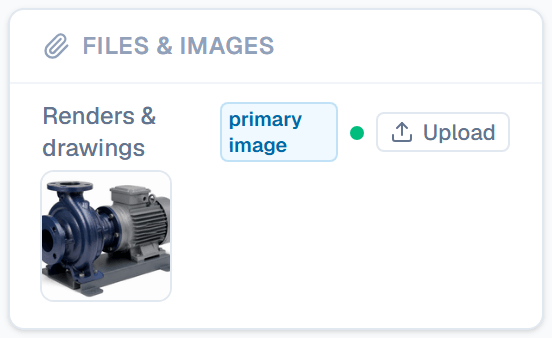
In the grid, double-click a Files cell to open the same list without leaving the table.
Attach one file to many records
Use this for a file that several records share, such as the installation manual of a whole series.
- In the grid, tick the records.
- Click Set field in the bar that appears.
- Under Field, pick the Files field.
- Click Choose File and pick the file.
- Click Apply to 2, or however many records you ticked.
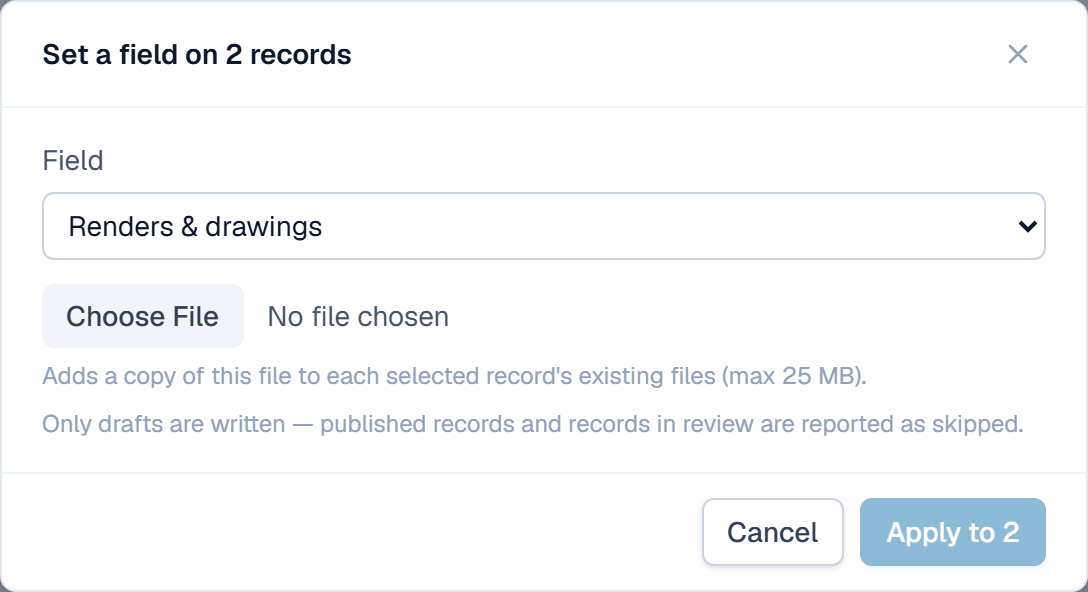
Each record gets its own copy, up to 100 records at a time. Records that aren't drafts are skipped, and the message after says which.
What happens after
The record's history lists each file added or removed. Once the record is published, its portal page offers the files of its public fields for download, and shows its picture when that comes from a public field.
Related
| Concept | Records & the grid |
| Reference | Field types |
| How-to | Set a field's confidentiality tier |