ContentsPrint a catalog and set your branding
Print a catalog and set your branding
Choose which published records a catalog prints, generate it from the grid, and set the logo, colors and footer your documents and portal share.
A catalog puts a whole table in one PDF: a one-page size table, or a page per product behind a contents page. Your branding is set once, and every catalog, spec sheet and portal page carries the same logo and colors.
Which records a catalog prints
A catalog prints the Published records of one table, and only their Public fields, whoever generates it. Saved views don't change it, because its choice of records lives in its template, not in anyone's grid. A catalog prints up to 500 records; past that, it says it shows the first 500.
The template chooses them in one of two places:
- On a page with a Records element, each record is one row. Sort sets the order, and Only rows tagged (optional) keeps the records carrying the tags you tick.
- On a page set to Repeats per record, the page prints once per record. Record order and Filter by tags, under Pages, do the same.
With two or more tags, Match sets whether a record needs all of them or any.
Before you start
- Catalogs need the Growth plan and up. Branding works on every plan.
- You need the Admin, Engineering or Marketing role. Branding needs Admin.
- To print only some records, tag them first: tick them in the grid and click Tag.
- Without a catalog template, a table prints the built-in catalog: a cover with contents, then a page per record. For your own, create a template for a Catalog and assign it, as in Design a template.
Choose the records
- On Templates, click the catalog template's name to open the designer.
- In Layers, click Records.
- Under Sort, pick the order, such as Flow at BEP.
- Under Only rows tagged (optional), tick Stock item.
- Click Save.
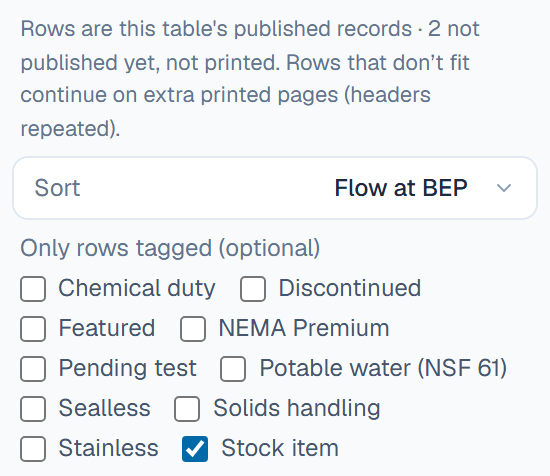
Ticking Stock item cuts the pump size table from 10 published pumps to the 3 kept in stock.
Generate the catalog
- Open the table's grid and click Export.
- Under PDF language, keep Default language or pick another language.
- Under Generate, click Catalog PDF, or a template's name when the table offers several.
- Wait while the menu reads Generating catalog…, then open Export again and click Open catalog PDF.
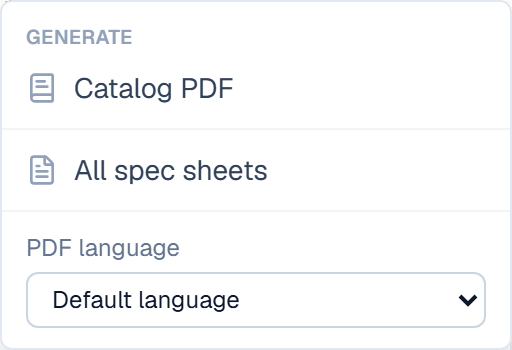
The new catalog replaces the one of the same template and language, and anyone in the workspace can open it from the grid or Documents.
Set your branding
Each setting reaches its own places:
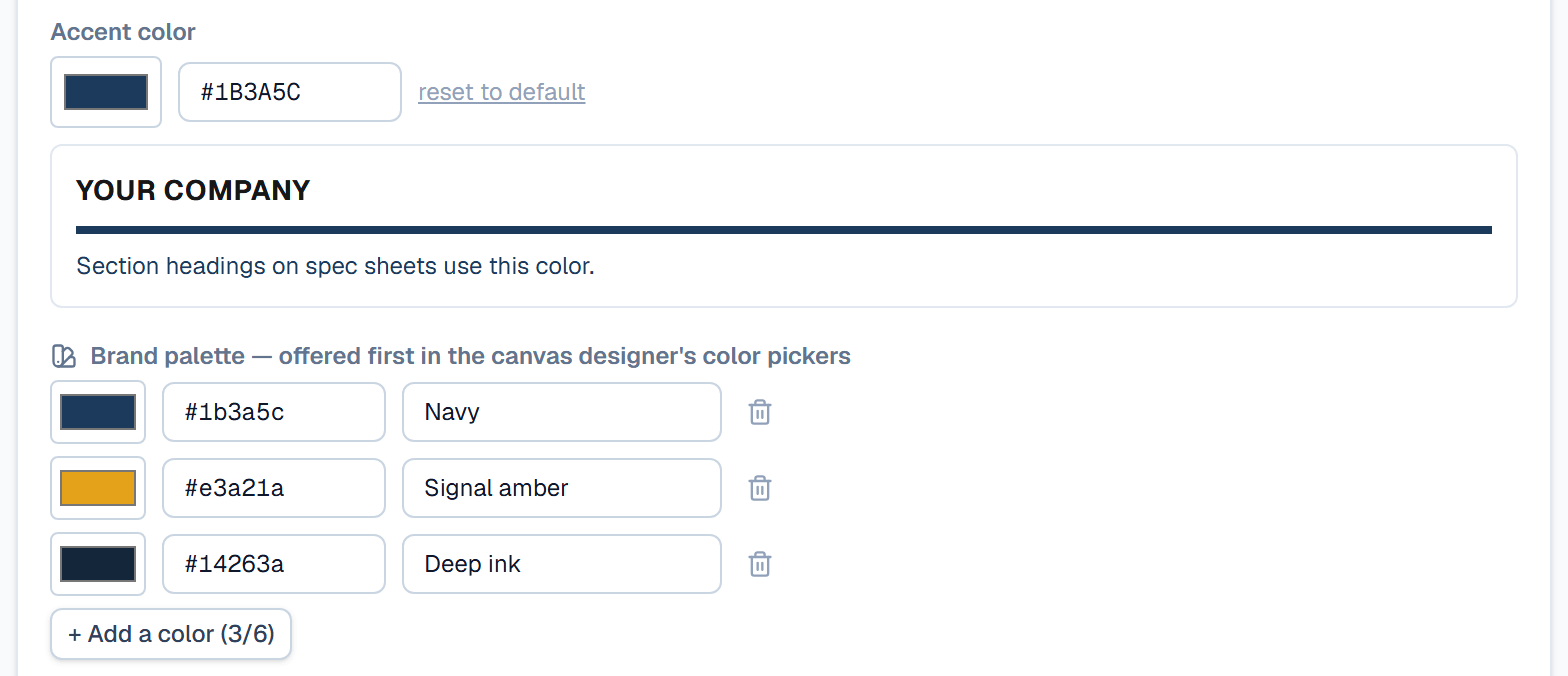
- Company name, Logo and Accent color show on spec sheets, catalogs and the portal.
- The Brand palette is what the designer's color pickers offer first.
- The Document footer / contact block prints on the built-in layouts and wherever a template uses the
{contact}token.
- Open Branding in Settings.
- Under Logo, click Upload and pick a PNG, JPEG, SVG or WebP file up to 2 MB. It saves at once.
- Set the Accent color with the swatch or a hex code.
- Click + Add a color for each brand color, up to six, and name it.
- Type your address and contact details in the footer box.
- Click Save branding.
What happens after
New documents carry the new branding at once, while PDFs already generated keep their look until you generate them again. A catalog is also flagged stale when one of its published records changes; see Documents & the designer.
Related
| Concept | Documents & the designer |
| How-to | Design a template |
| How-to | Generate a spec sheet PDF |
| How-to | Documents in other languages |