ContentsField types
Field types
The nine tiles of the field type gallery: what each field holds, its options, where its values show and whether it imports.
Every field has a type, picked from a gallery of nine tiles when you click Add field on Fields. The type decides what a value can be, how SpecLatch checks it, how it prints and whether a spreadsheet can fill it. Pick the type that matches how people think about the value, because the type locks as soon as a record holds one.
Which type?
- A name, a code or a note: Text.
- A measurement or a count: Number, with a unit when it has one, so it converts and shows in both systems.
- A tick: Yes / no.
- A date, especially one that expires: Date.
- One of a fixed set of options: Choice, so everyone spells the options the same way.
- Photos and drawings of one record: Files.
- Another record, such as the motor a pump runs on: Link to records.
- A value read from linked records: From linked records.
- A value worked out from other fields: Calculated.
Each section below follows the gallery's order and says what the field holds, its options, where it shows and how it imports.
Text
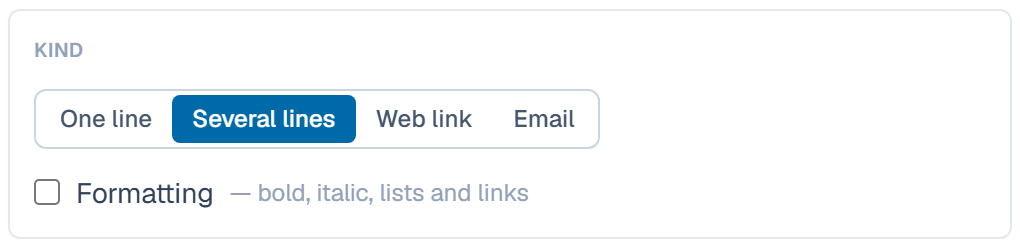
A text field holds names, codes and notes. Under Kind, pick One line, Several lines, Web link or Email.
- Several lines keeps line breaks. Tick Formatting to allow bold, italic, lists and links.
- A Web link should start with
http://orhttps://, and shows as a link. An Email shows as a mail link. - Under More options, a Format pattern checks each value against a regular expression, such as
^[A-Z]{2}-\d{4}$. Your organization's validation mode decides whether a mismatch warns or blocks. Formatted text has no pattern.
The record page, spec sheets and the portal show the text, and formatted text keeps its bold and lists there. Text columns import as they are.
Example: a pressure gauge's Dial range (as printed) holds 0–300 psi on one line, and its Engineering notes use several lines.
Number
A number field holds a value, with or without a unit. Under Unit, pick None — a plain number or a unit from a group such as Length or Pressure. With a unit, SpecLatch stores the value once and shows it in both systems, so nobody keeps a metric column in sync by hand.
- The line under the unit previews a value in both systems. Click Change to pick other display units under Imperial shows and Metric shows.
- Under More options, set an Allowed range, the Decimals and Keep trailing zeros. A length can also show inches as fractions, from the nearest 1/8 to the nearest 1/64.
The record page puts the unit beside the field name. Spec sheets print one system with the other in parentheses, and the portal shows the visitor's chosen system with the other beside it. Imports convert from a column's Source unit, or from a unit typed in the cell.
Example: a close-coupled pump's Head at BEP is stored in ft, so 132.6 shows as 132.6 ft · 40.4 m.
Yes / no
A yes/no field holds a tick, such as UL listed or stocked item, and has no options of its own.
A record you can edit shows a checkbox; otherwise the value reads Yes or No. Spec sheets and the portal print Yes or No in the reader's language. Imports accept yes, no, true, false, y, n, 1 and 0.
Example: a pressure gauge table tracks Individual calibration certificate (NIST-traceable) as a yes/no field.
Date
A date field holds a calendar date. Certificates and listings expire, so a date can warn you ahead of time: under Expiry, tick Warn before it expires and set the number of days before. The form suggests 90.
Warnings show in the dashboard's Expiring soon card, and members who can edit records and see the field also get a notification. Records offer a date picker. Imports read spreadsheet dates and common date text.
Example: a ball valve's NSF listing, next annual review warns 60 days before each review date.
Choice
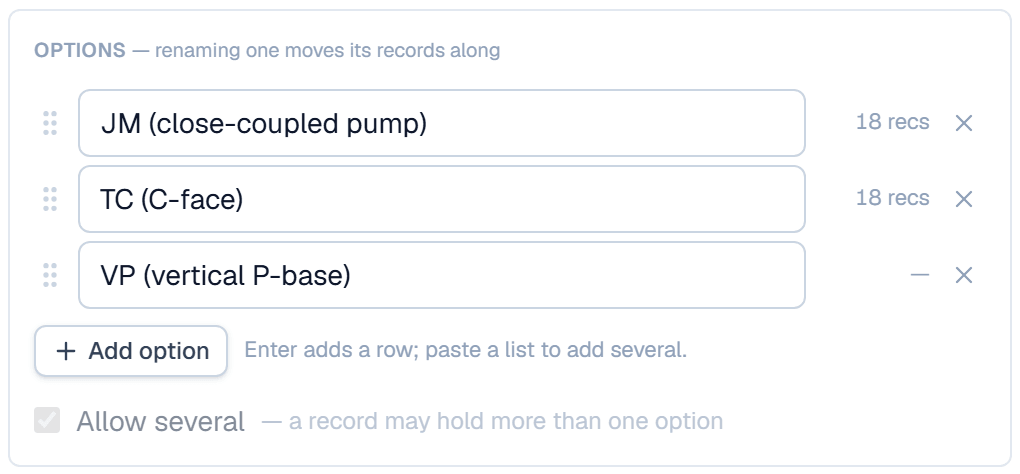
A choice field holds options from a list you define, so every record uses the same spelling and filters work. Type the options under Options: Enter adds a row, and pasting a list adds several. Tick Allow several when a record may hold more than one.
- Each option shows how many records use it, and renaming an option moves its records along.
- Removing an option in use asks what happens to its records: Move, Clear them or Keep the option.
- Allow several can't change once a record holds a value.
A single choice is a drop-down on the record page; several show as buttons you toggle. Spec sheets and the portal print the chosen options. An imported cell must match an option; separate several with ; or ,.
Example: a motor's NEMA frame holds one option, such as 184T. A belt conveyor's Carrying idlers available allows several, such as CEMA C and 35° troughing.
Files
A files field holds photos, drawings and other files that belong to one record. A manual shared by many records belongs in Documents instead, so it's stored once.
On the record page, each files field sits in the Files & images card with an Upload button. A file can be up to 25 MB, and a field holds up to 20. The table's Primary image setting picks which field's first image becomes the record's thumbnail. The portal shows a product's images and lists its other files under Downloads. Files don't import from a spreadsheet.
Example: each close-coupled pump carries Renders & drawings, the table's primary image field.
Link to records
A link field connects a record to records of another table, or of the same one, so the linked record's specs are typed once. Pick the table under Links to records of; it can't change after you create the field.
- The other table gets a matching link field, named after this table and the field, such as Ball Valves (Standard actuator). Both sides show the same links, and either side can change them.
- A link field holds as many records as you pick, up to 200.
The record page shows each linked record as a chip that opens it, and Edit links changes them while the record that holds the field is a Draft. The portal lists them under Related products, and a spec sheet template's Linked records block can print them. An import column matches the other table's records by name, model number or SKU; separate several with |.
Example: a ball valve table links each size to its Standard actuator in an actuator table, and the actuator table then lists the valves that use each actuator. For the steps, see Link two tables, add lookups and rollups.
From linked records
This field shows or combines values from the records a link field points to. Pick the link under Through, what to Show, and the Field to read.
- Each value and Unique values list the linked values; this is a lookup. Unique values lists each one once.
- Sum, Average, Lowest, Highest and Range (lowest–highest) combine a number field; this is a rollup. Count counts the linked records and needs no field.
- A rollup of a field with a unit adds Show in. Values convert into that unit before they combine, so mixed units come out right.
The values are read-only and marked ƒ, because SpecLatch works them out from the links. A lookup or rollup stays empty for anyone who can't see the field it reads, and these fields don't import.
Example: a bimetal thermometer's Insertion lengths it fits reads its linked thermowells. A 6 in stem fits wells of 4.5, 4.5 and 4 in, so Range (lowest–highest) prints 4–4.5 in (102–114 mm) on spec sheets and the portal.
Calculated
A calculated field works out its value from a formula of other fields, written with their keys, so nobody computes it by hand and it never goes stale. Type the formula under Formula. The line below it says whether the result is a number, and of what kind, or a choice. For a number, pick the unit it's stored in, then click Preview on real records to try it before you save.
Results are read-only, marked ƒ, and recompute when their inputs change. Spec sheets and the portal print them like numbers or options. They don't import.
range_min=0 psirange_max=300 psirange_max - range_min
A second calculated field can read this one: Accuracy (±) is span * accuracy_pct / 100, so with accuracy_pct = 0.5 it is 1.5 psi.
For the steps, see Give fields units and write your first formula.
Built-in columns
Every table also has Name, Model #, SKU and Description. They hold text, sit at the top of the field list with a built-in badge, and are always Public. Name is required and can't be hidden. Untick shown beside Model #, SKU or Description to hide that column; its data is kept. Imports map to them by the keys @name, @model, @sku and @description.
Example: a pump table can hide SKU and tell its pumps apart by Model #.
Related
| How-to | Create a table and its fields |
| How-to | Link two tables, add lookups and rollups |
| How-to | Give fields units and write your first formula |
| How-to | Import a spreadsheet |