ContentsHow columns map to fields; row states in the dry run
How columns map to fields; row states in the dry run
How an import pairs spreadsheet columns with fields, how each cell becomes a value, and what each row state in the dry run means.
Read this when a column doesn't map itself, a cell doesn't import the way you expected, or the dry run marks a row you don't understand. Each section stands on its own:
- How headers find their field
- Columns that aren't fields
- How cells become values
- Fields an import can't fill
- Row states
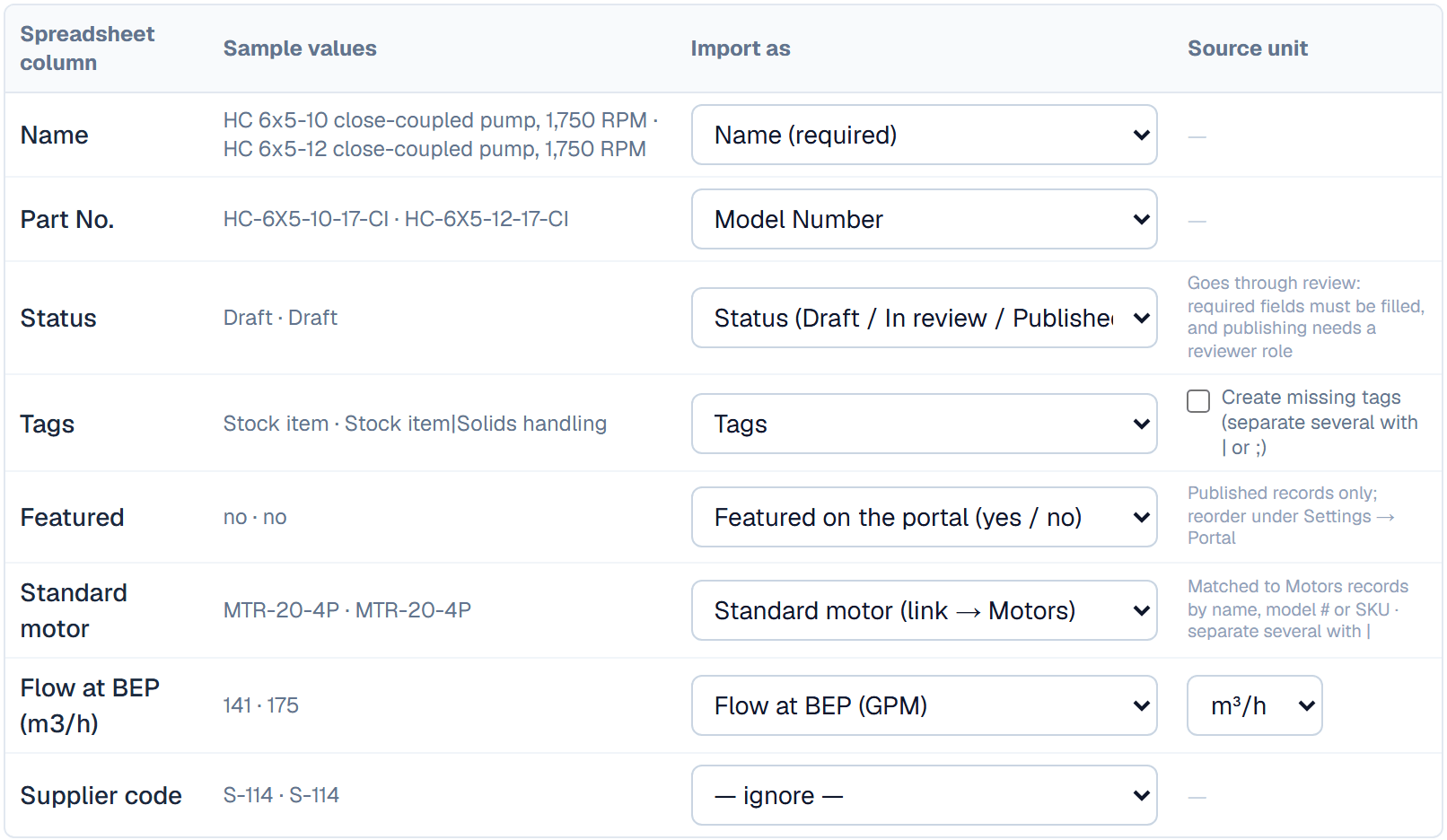
How headers find their field
When you choose a file, each column whose header names a field maps itself, so most columns need no work. A header matches a field's name or its key, and the match is forgiving:
- Capitals don't matter, and underscores and hyphens read as spaces, so
bep_flowfinds the keybep_flowandLead-timefinds Lead time (weeks). - A last part in brackets is dropped, so
Flow at BEP (m3/h)finds Flow at BEP. The unit in the brackets is not read, so set Source unit yourself. Name,ProductandProduct namemap to Name.Model,Model #,Model no,Part no,Part number,Item #and similar map to Model Number.
A column that matches nothing stays on — ignore —. When its header mentions a model or part number, it gets a looks like the model number tag, because a missed model number column means repeats aren't caught.
Two shortcuts fill unmapped columns. Apply profile… reuses a mapping you saved, matched by header names in any column order. Suggest with AI proposes the rest, if your organization has added its own Anthropic key; it sends the headers and a few sample values, and never overwrites a column you mapped.
Columns that aren't fields
Besides Name and Model Number, these targets in Import as set the record itself rather than a field:
- Status (Draft / In review / Published) moves each new or matched record through review as it imports. Sending for review follows the usual rules, so a record missing a required value stays a draft and its row gets a warning. Your role needs the right to submit, and to publish also the right to approve, so only the Admin role can import records as Published.
- Tags sets the record's whole tag list. Separate several tags with
|or;. A tag that doesn't exist yet is an error, unless you tick Create missing tags. - Featured on the portal (yes / no) features the record on your portal. It needs the Admin role and a record that ends up Published.
- Description and SKU fill the record's built-in description and SKU.
How cells become values
Every cell goes through the same checks as a value typed into the grid, so a cell that wouldn't save by hand doesn't import either.
- Number: commas are dropped, so
1,850imports as 1850. A plain number is read in the column's Source unit, which starts as the field's own unit. A cell that names its unit, such as141 m³/h, converts from that unit even if Source unit says otherwise. Converted values keep six significant digits, so 141 m³/h imports as 620.804 GPM. - Yes / no:
yes,y,trueand1mean yes;no,n,falseand0mean no. - Choice: the cell must match an option exactly as the field spells it. For a field that allows several options, separate them with
;or,. - Date: an Excel date,
2026-11-11, or a date written out such asNov 11, 2026. - Link to records: name the linked records by name, model number or SKU, and separate several with
|. A name that matches no record, or more than one, is an error naming the linked table. - Text: imports as it is.
A cell that holds an Excel formula imports the result Excel last calculated. A blank cell leaves the field empty on a new record, and changes nothing on a record being updated.
Fields an import can't fill
Import as leaves out three kinds of field, because they get their values elsewhere. Calculated fields compute from other fields after the import. Files fields take uploads on the record page. From linked records fields read their values through a link.
Row states
The dry run gives each row one state, and Apply counts only the New and Update rows.
- New: the row will create a record, as a Draft unless a Status column says otherwise.
- Update: the row matched a draft, and Details lists each change, old value → new value. Numbers there are in the field's own unit, and
∅means empty. - No change: the row matched a record, but none of its values differ.
- Duplicate: the row's model number already belongs to a record, even one in the trash, or to an earlier row of the file. The row is left out.
- Skipped: in an update, no record matches the row and unmatched rows are skipped. A row is also skipped if the plan's record limit fills up during the import.
- Error: something in the row stops it, and Details says what: a value that doesn't fit its field, a record that isn't a draft, a match on more than one record, a second row matching the same record, or an empty Name.
A row can also show a warning, counted as with warnings at the top. A value broke one of its field's rules, such as an allowed range, but the row still imports. Your organization's validation mode decides what happens next: under Balanced, the flagged value blocks sending the record for review until it is fixed, and under Strict, the row is an Error instead.
Download issue report (CSV) saves the Error, Duplicate and Skipped rows and the warnings, with their reasons, so you can fix the file line by line.
Related
| How-to | Import a spreadsheet |
| How-to | Update existing records from a file |
| Reference | Field types |