ContentsCreate an API key; connect an AI assistant
Create an API key; connect an AI assistant
Give a website, a script or an AI assistant its own read-only key, choose how much of your catalog it sees, and connect an assistant over MCP.
Give each system that needs your catalog its own API key: a website, a quoting script, or an AI assistant that answers questions about your specs. It then reads live records instead of an exported copy that goes stale. This guide creates a key, then connects an assistant with it.
What a key can read
Every key is read-only. The API answers read requests only, and an assistant's tools go through the same API, so changes still happen in the app.
What a key reads depends on its visibility, chosen when you create it. Like a member's, it is the most the key will ever see:
- A Public key reads Published records only, with their Public fields, files and documents, as your portal does.
- An Internal key adds Draft and In review records, Internal fields and tags.
- A Confidential key reads every field.
Say a ball valve's Cv is Public and its list price is Internal. An assistant with a Public key quotes the Cv, but asked for the price, it finds no such field. Choose the lowest visibility that does the job, because an assistant can repeat whatever its key reads to anyone who uses it.
Before you start
- You need the Admin role.
- The API comes with the Growth plan and up, and with the trial. Growth includes one active key; Professional has no limit.
- For the second part, you need an assistant that accepts an MCP server with a header, such as Claude Code, Cursor or VS Code.
Create a key
- Open Settings, then API keys.
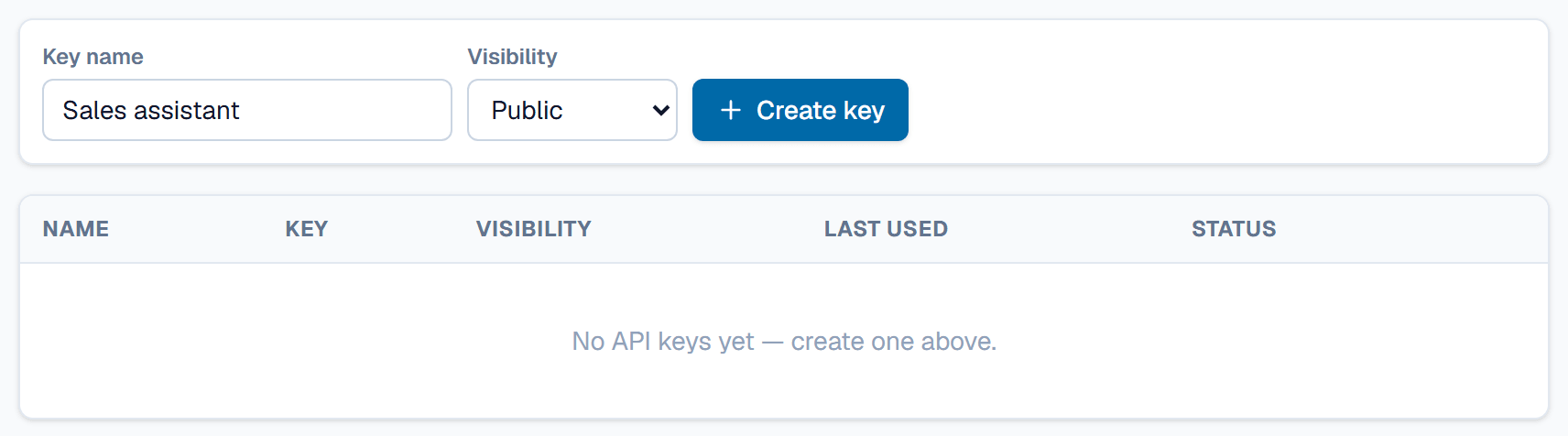
- Under Key name, type what the key is for, such as Sales assistant.
- Under Visibility, choose the tier the key needs.
- Click Create key.
- Click Copy in the box that appears, and keep the key in your password manager.
This is the only time SpecLatch shows the key, because it keeps only a fingerprint of it. If you lose a key, create a new one and revoke the old.
Connect an AI assistant
SpecLatch is an MCP server. MCP, the Model Context Protocol, is how AI assistants reach outside tools. The assistant sends your key with every request, so it sees what the key sees.
- In your assistant, open its settings for MCP servers.
- Add a server with the address
https://app.speclatch.com/api/mcp. - Add a header named
Authorizationwhose value isBearer, a space, then your key. - Ask something that needs your data, such as Which tables are in SpecLatch?
The assistant calls the list_tables tool and names your tables. For a spec question, it reads the table's fields and units with describe_table, then finds records with search_records and get_record. The developer docs give the exact setup for Claude Code, Cursor, VS Code and Claude Desktop.
Replace or revoke a key
The list shows each key's visibility under Scope and when it was Last used. Revoke a key that leaked, or one nothing uses any more.
- Click Revoke… on the key's row.
- Click Revoke key.
Anything using the key stops working at once, and a revoked key can't be restored.
What happens after
The key belongs to the workspace rather than to you, so it keeps working when members change. Activity lists who created or revoked each key. Keys stop answering while the plan doesn't include the API.
Related
| Concept | Portal & API |
| How-to | Set a field's confidentiality tier |
| How-to | Turn the portal on and choose what customers see |