ContentsTranslations and AI assists
Translations and AI assists
Hand your translations to a translator as a CSV file, and connect your own Anthropic or OpenAI key so imports and grid filters get AI suggestions.
A translator without a login needs your words in a file, and the AI shortcuts on imports and grid filters need a key from your own AI provider. Both are set up once for the whole workspace. To type translations in the app or print in French or Spanish, see Documents in other languages.
Before you start
- Both come with the Growth plan and up, and with the trial.
- Translating needs the Admin, Engineering or Marketing role. Only the Admin role adds or removes the AI key.
Send translations out as a file
An agency rarely wants a login, so send it a CSV file: every word of one table, or of your portal and templates, beside its English.
- Open Translations in Settings.
- Under What to translate, pick a table, or Portal & document templates.
- Click Export CSV.
- Send the file to your translator, who fills its fr and es columns.
- With the same entry still picked, click Import CSV and choose the returned file.
- Read the message, such as 12 updated · 30 unchanged.
Rows match by key, in any order. A blank fr or es cell removes the translation that was there. If any row is wrong, such as a text over 4,000 characters, nothing changes and the message names the problem.
How AI assists use your key
Each assist is one request to Anthropic or OpenAI, made with the key you save, so the provider bills the account that owns the key. Without a key, nothing is sent.
What a request carries:
- Suggest with AI on an import: the file's column headers, up to five sample values per column, and the names, types and units of the table's fields.
- A plain-language filter: your sentence, and the names, types, choices and units of the fields you can see. A field above your visibility isn't named, so it can't be filtered on.
Values stored in your records are not sent. On a pump table, the model learns that Head at BEP is stored in ft, but never sees a pump's head. What comes back is a draft: SpecLatch drops any suggestion that doesn't match a real field, an import still waits for your dry run, and a filter only changes what the grid shows.
Add your key
- In your Anthropic or OpenAI account, create an API key for SpecLatch and copy it.
- In SpecLatch, open Settings, then AI assists.
- Paste the key into the box beside Anthropic or OpenAI.
- Click Save key. The box now shows only the key's last four characters.
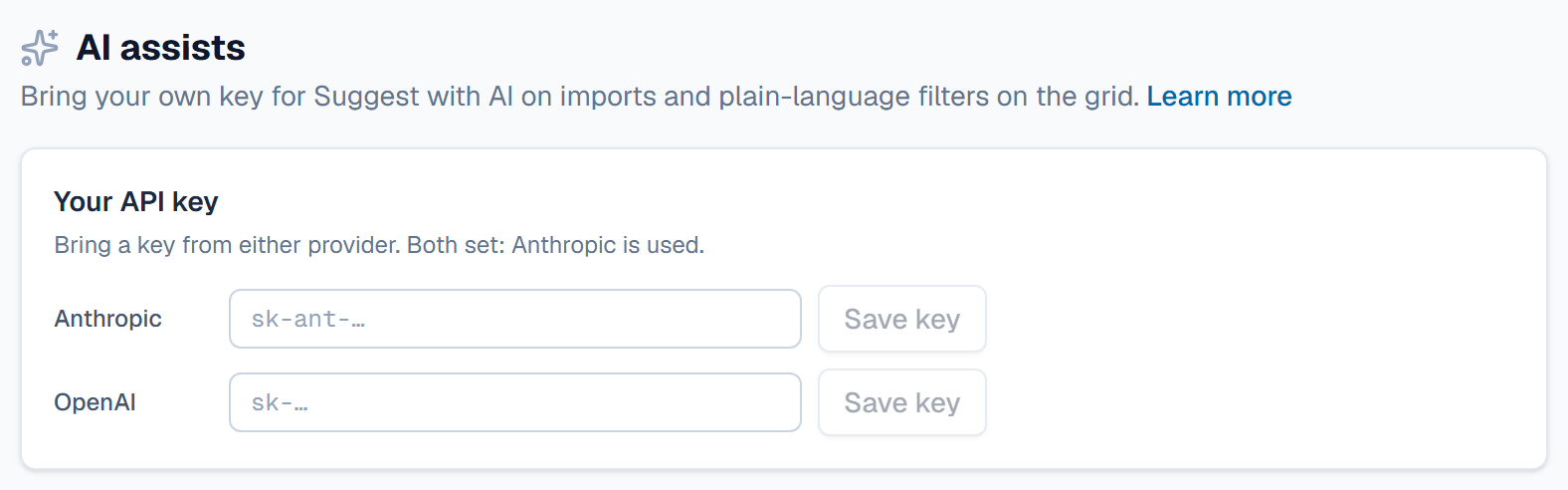
SpecLatch stores the key encrypted and never shows it again. It isn't tested on save, so a mistyped key shows on the first assist: Anthropic rejected the API key. To change a key, click Remove key, confirm, and paste the new one. Activity records each change. On Starter, a key saved earlier stays listed with Remove key.
Map an import with AI
On Import, after uploading a file, click Suggest with AI above the column list. It fills only unmapped columns, with a unit when the header names one, and labels each AI suggested for you to check. Either key works.
Describe a filter in plain words
Any member can do this, Viewer included.
- In a table's grid, click Filter.
- In the first row, type what you want, such as stainless pumps over 100 ft of head.
- Click Build.
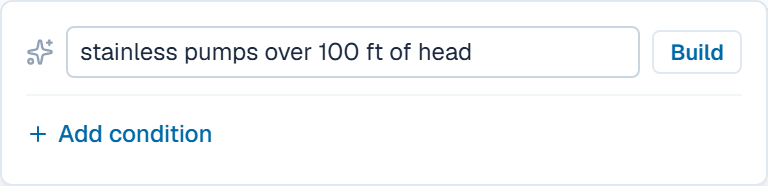
They replace the menu's current conditions, and a line under the box names any part of the request the table's fields can't express.
Related
| How-to | Documents in other languages |
| Reference | How columns map to fields; row states in the dry run |
| How-to | Save a view for your team |
| Concept | Members, settings & billing |