ContentsUpdate existing records from a file
Update existing records from a file
Change many records at once from a spreadsheet: each row finds its record, a dry run lists every change, then you apply.
Use this when new values arrive for records you already have: a price list, revised lead times, corrected dimensions. Typing them into dozens of records invites slips. An update import finds each row's record, lists every value it would change, old and new, and writes nothing until you apply.
This guide applies a price sheet to a pump table: a list price and a lead time for each model number.
How rows find their records
Each row names its record in one column, the one you choose under Match on: Model #, SKU or Name. Capitals don't matter. Three rules then keep the update safe:
- Blank cells change nothing. Map the match column and the columns you are changing, and leave the rest out, so a half-filled sheet can't wipe a value.
- Only Draft records take changes, because a value that was reviewed shouldn't change without a new review. A row whose record is In review or Published becomes an error.
- A row that matches no record is skipped, unless you choose to create it.
Before you start
- You need the Admin or Engineering role.
- Your file is .xlsx or .csv, with a column that names each record, such as the model number.
- The records you will change are drafts. To change a published record, return it to draft first, as in Send a record for review, approve, publish.
Map the columns
- On Tables, click Import data.
- Pick the table in Import into.
- Click Choose spreadsheet… and pick your file.
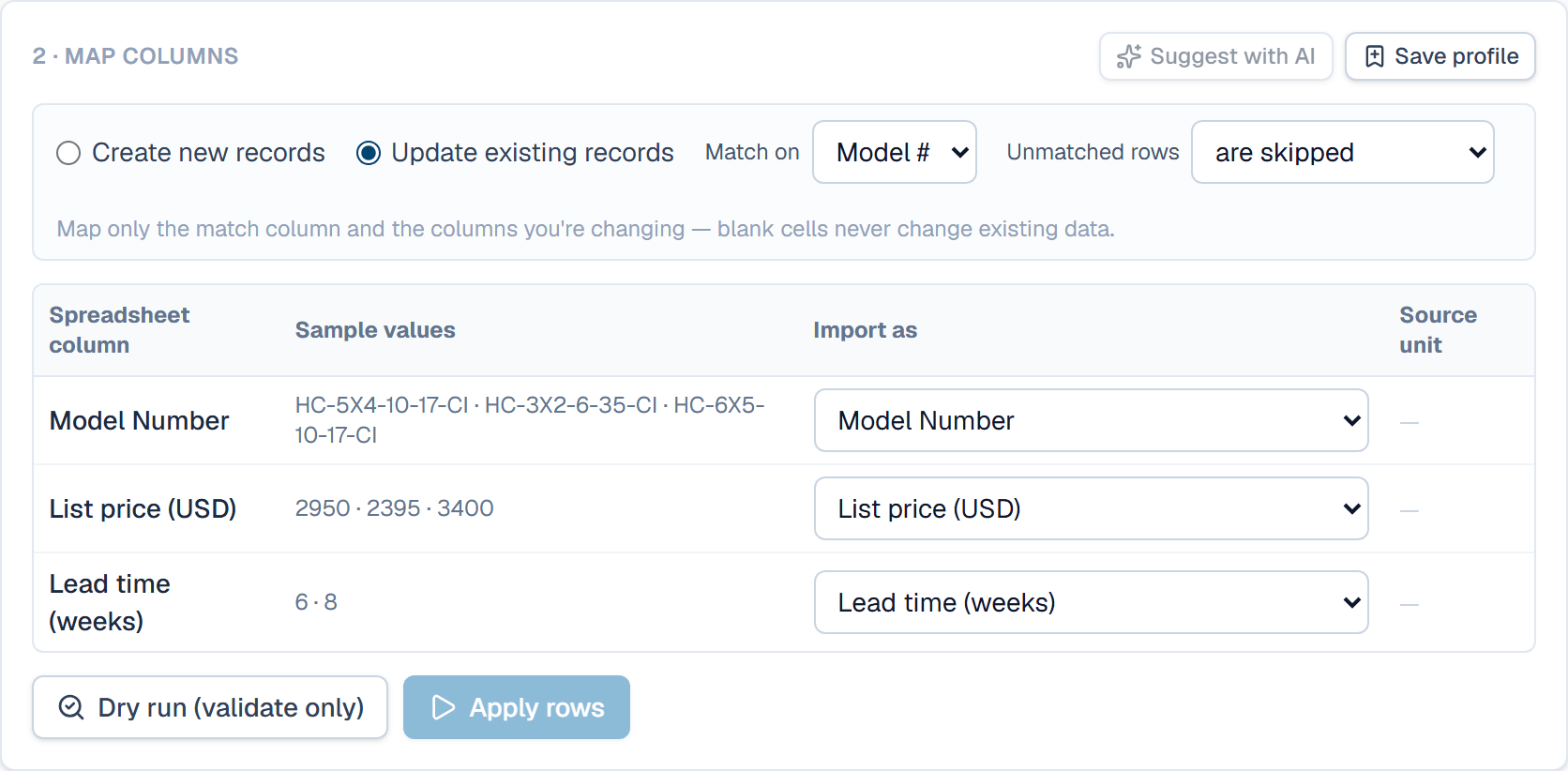
- Select Update existing records.
- Under Match on, keep Model #. Under Unmatched rows, keep are skipped.
- Under Import as, check that each column maps to the field it changes. A header such as
List price (USD)finds the field List price (USD) by its name.
Check the dry run, then apply
- Click Dry run (validate only). Nothing is written yet.
- Read each row's state. An Update row lists its changes under Details, old value → new value, where
∅means the field was empty. - Read why each Error or Skipped row was left out, then fix the file or the mapping and run the dry run again.
- Click Apply, which counts the rows to update, then confirm.
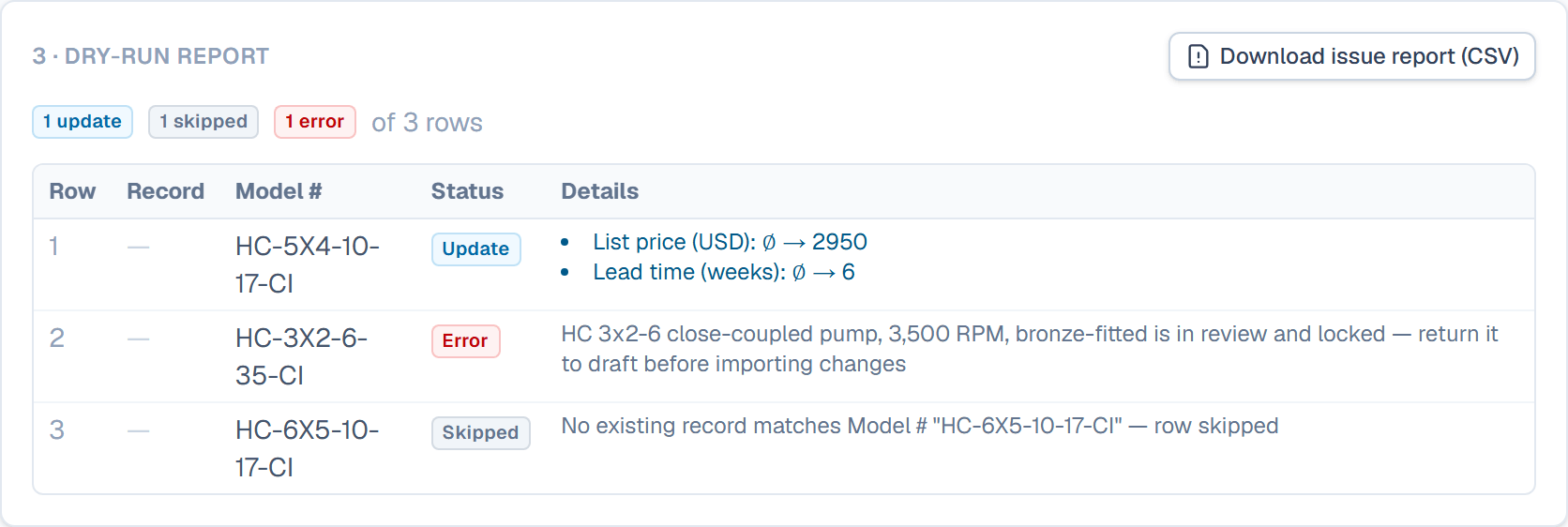
Numbers in Details are in each field's own unit, the unit the value is stored in.
What happens after
The records stay drafts, now with the new values, and their calculated fields recompute. Each record's history names the file the values came from. When the records are ready, send them for review.
Related
| How-to | Import a spreadsheet |
| Reference | How columns map to fields; row states in the dry run |
| How-to | Paste from a spreadsheet |