ContentsTurn the portal on and choose what customers see
Turn the portal on and choose what customers see
Decide who can reach your catalog site, which tables and products it shows, and which fields sum up each product.
The portal is a catalog site for your customers, built from the records you already keep. Before you share its link, decide who can reach it and what it shows, so customers find your published specs and nothing meant for staff. At the end, the portal has an address, lists the tables you chose and sums up each product with the fields you picked.
What decides whether a value reaches the portal
A value shows on the portal only when four things are true at once:
- The portal is open: its access is Link only or Public.
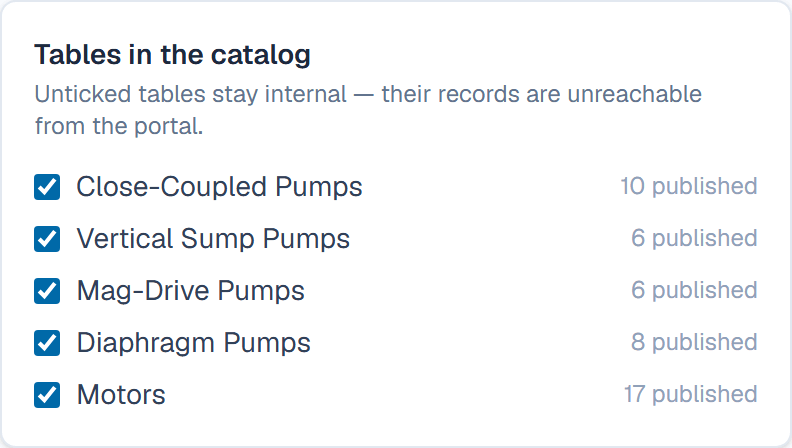
- The record's table is ticked under Tables in the catalog.
- The record is Published.
- The field is Public.
If any one is false, the value stays inside SpecLatch. Files, documents and curves follow the same rule through their own tiers. That is why most of the work happens earlier, in field tiers and review.
Take the HC 2x1.5-6 close-coupled pump, a Published record in a ticked table. Customers see its Flow at BEP, 130 gpm (29.5 m³/h), a Public field, but not its List price (USD), which is Internal. The HC 3x2-6 is still In review, so the portal doesn't list it.
Before you start
- You need the Admin role.
- Your workspace is on the Growth plan or higher, or in its trial.
- Some records are Published, and the fields customers should see are Public. See Set a field's confidentiality tier and Send a record for review, approve, publish.
Open the portal and give it an address
- Click Settings at the bottom of the sidebar, then open Portal.
- Under Portal access, pick Link only while you try the catalog with a few customers, or Public to let search engines list it.
- Under Address, type the part after
/portal/, such as your company's name in lowercase with dashes, and click Save address. If you rename it later, the old address keeps working. - Click Open to see the catalog as a visitor does, or Copy link to share it.
The other settings on this page save on their own, with no Save button.
Choose the tables and featured products
- Under Tables in the catalog, untick each table customers shouldn't browse, such as one you keep for internal test results.
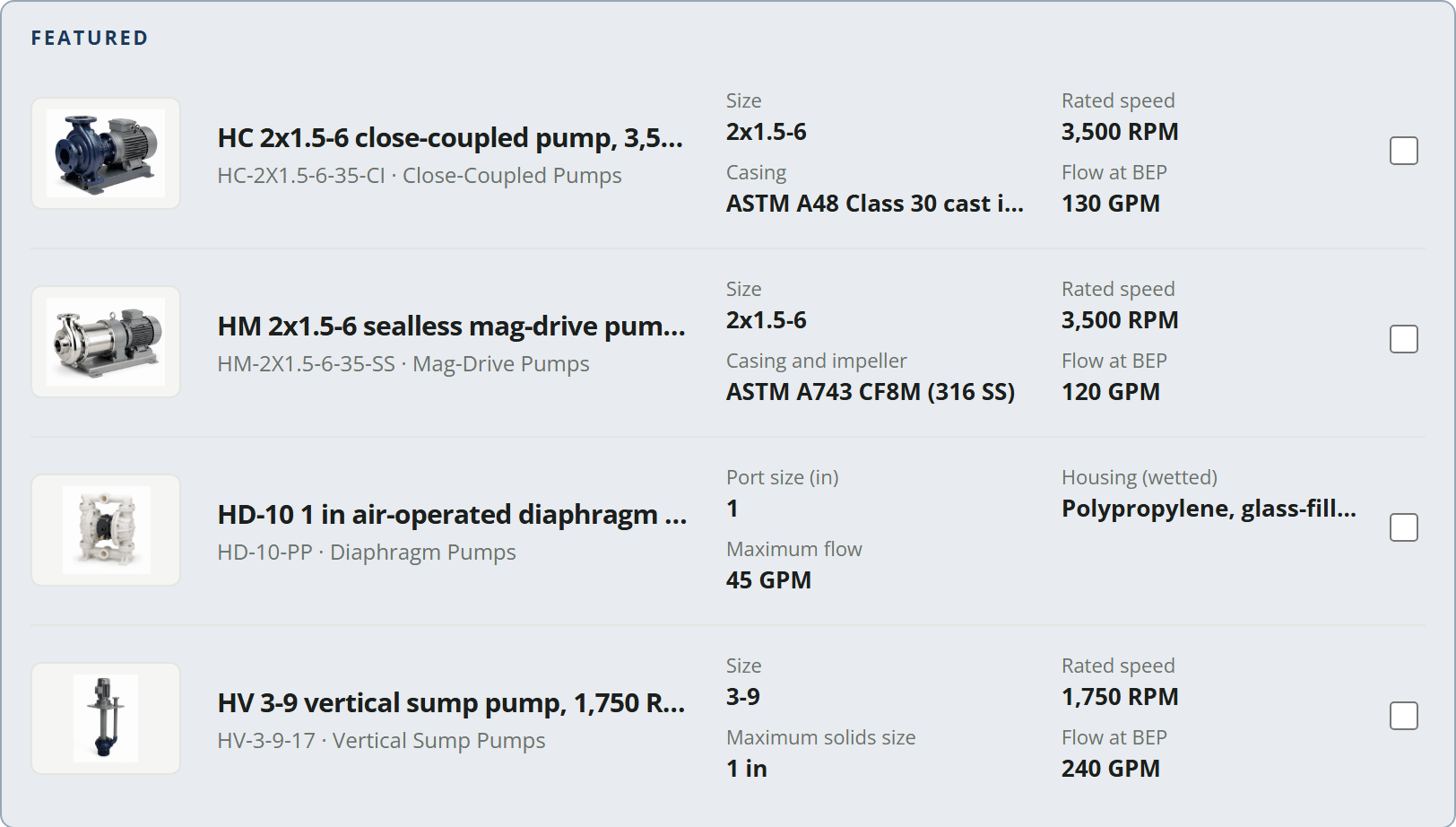
- Under Featured products, pick a product from Add a published product…. It joins a highlighted row at the top of the catalog, up to eight. Only records of ticked tables are offered.
Under Header, Contact block and Languages, set the headline and banner, how visitors reach you, and the languages they can switch to.
Choose the fields that sum up each product
In the catalog list, each product row shows up to four fields beside its name, and the table view up to six. You choose them per table, on each field. A table with none chosen shows its first Public fields.
- Open Fields and pick the table on the left.
- Click the pencil (Edit field) on a Public field, such as Flow at BEP.
- Under Who sees it, tick Headline on the portal.
- Click Save changes, then do the same for the other fields.
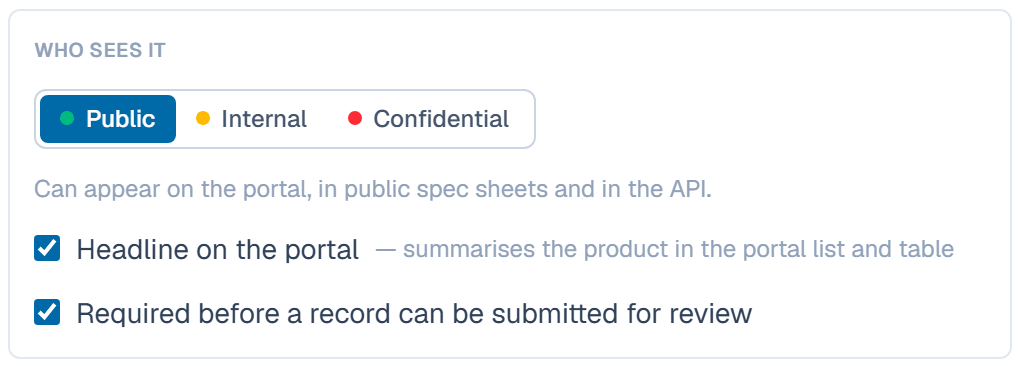
The box shows only on Public fields other than links, lookups and long text. When you choose more than fit, the first ones in field order show.
What happens after
Visitors can browse, search, filter and compare products, and choose their units. Each published product gets a page with its Public specs, images, curves and downloads.
Traffic, on the portal settings, counts the views of the last 30 days, leaving out your own team's visits.
Related
| Concept | Portal & API |
| How-to | Set a field's confidentiality tier |
| How-to | Send a record for review, approve, publish |
| How-to | Receive and answer inquiries |