ContentsGenerate a spec sheet PDF
Generate a spec sheet PDF
Print one record as a branded PDF from its record page, in the language and visibility you choose.
Before you start
- You need the Admin, Engineering or Marketing role.
- For the final sheet, the record must be Published. Any other record gives a watermarked preview.
- The table's default template sets the layout. Without one, SpecLatch uses its built-in layout.
- A language other than your default needs the Growth plan and up.
Steps
-
In the table's grid, click the Open record page icon at the end of the record's row.
-
Click Spec sheet in the record header.
-
At the top of the menu, under Generate, pick a Language. Default language uses your workspace's default.
-
Pick a Visibility. A Public sheet prints only Public fields; an Internal or Confidential sheet adds those fields. The list stops at your own visibility, and a Public member doesn't see it.
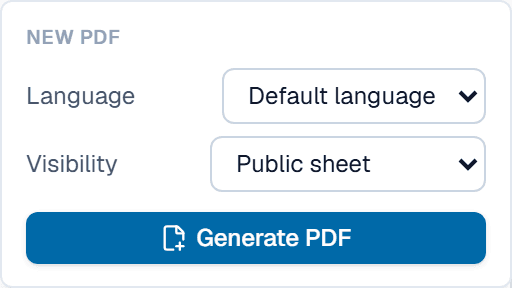
Set the language and visibility first, then click the item under Generate. -
Under Generate, click Spec sheet PDF. If the table offers several templates, click a template's name instead. On a record that is not yet Published, the item reads Draft preview (watermarked).
-
Wait while the button reads Generating…. Then open Spec sheet again and click the new sheet under Open.
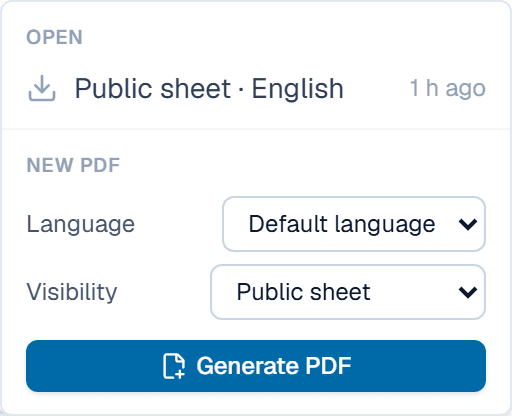
The new sheet is listed under Open, named by its visibility and language.
What happens after
A Public sheet of a Published record is offered for download on the record's portal page. An Internal or Confidential sheet stays off the portal. Only members whose visibility reaches its tier can download it. When the record changes later, the sheet is flagged stale until you generate it again.
Related
| Concept | Documents & the designer |
| How-to | Send a record for review, approve, publish |
| How-to | Set a field's confidentiality tier |