ContentsDefine a reusable function
Define a reusable function
Write a calculation once, give it a name, and use it in any calculated field. When the math changes, you fix it in one place.
Use a function when the same calculation appears in several fields or tables. A pump catalog, for example, works out hydraulic power in every pump table. As a function, the math lives in one place, each field just says hydraulic_power(flow, head, 1), and a correction to the math updates every record that uses it.
This guide creates that function, then uses it in a calculated field.
Before you start
- To create a function, you need the Admin role, or Engineering with Confidential visibility. Everyone can open Functions and try one in its calculator.
- Have the math at hand, with the unit each value is in. Here: power (hp) = flow (gpm) × head (ft) × specific gravity ÷ 3,960.
How the formula handles units
The constant 3,960 only works when flow is in gpm and head in feet. Your fields may store other units, so the formula asks for the units it needs:
num(flow, "GPM")gives the flow as a plain number of gpm, whatever unit the field uses.qty(…, "HP")turns the answer back into a power, in hp.
SpecLatch converts each input before the math runs, so a flow stored in m³/h works as well as one in gpm.
Create the function
- In the sidebar, open Functions and click New function.
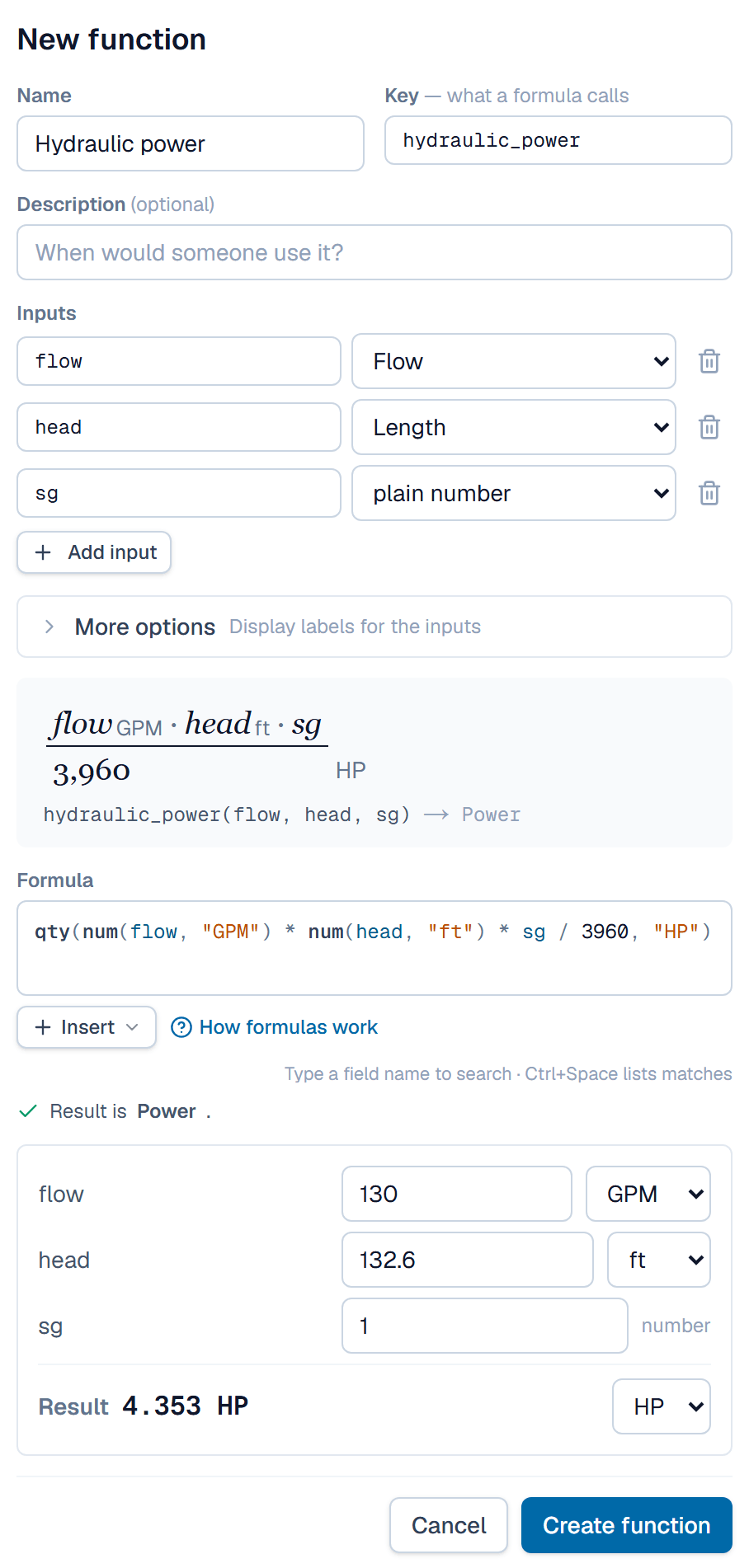
- Type the name Hydraulic power. SpecLatch fills in the key,
hydraulic_power, which is what formulas call. The key can't change later. - Type
flowas the first input. Click Add input and typehead, then click Add input again and typesg. - Next to each input, choose the kind of value it takes: Flow, Length and plain number.
- Type the formula:
qty(num(flow, "GPM") * num(head, "ft") * sg / 3960, "HP"). The line under it should read Result is Power. - Test it in the calculator under the formula: 130 for flow, 132.6 for head (pick ft if another unit shows) and 1 for sg. The result reads 4.353 HP.
- Click Create function. The button stays grey until the formula checks out.
Use it in a calculated field
- Open Fields, pick a pump table, click Add field and pick the Calculated tile.
- Name the field, for example Hydraulic power at BEP.
- In the formula, type
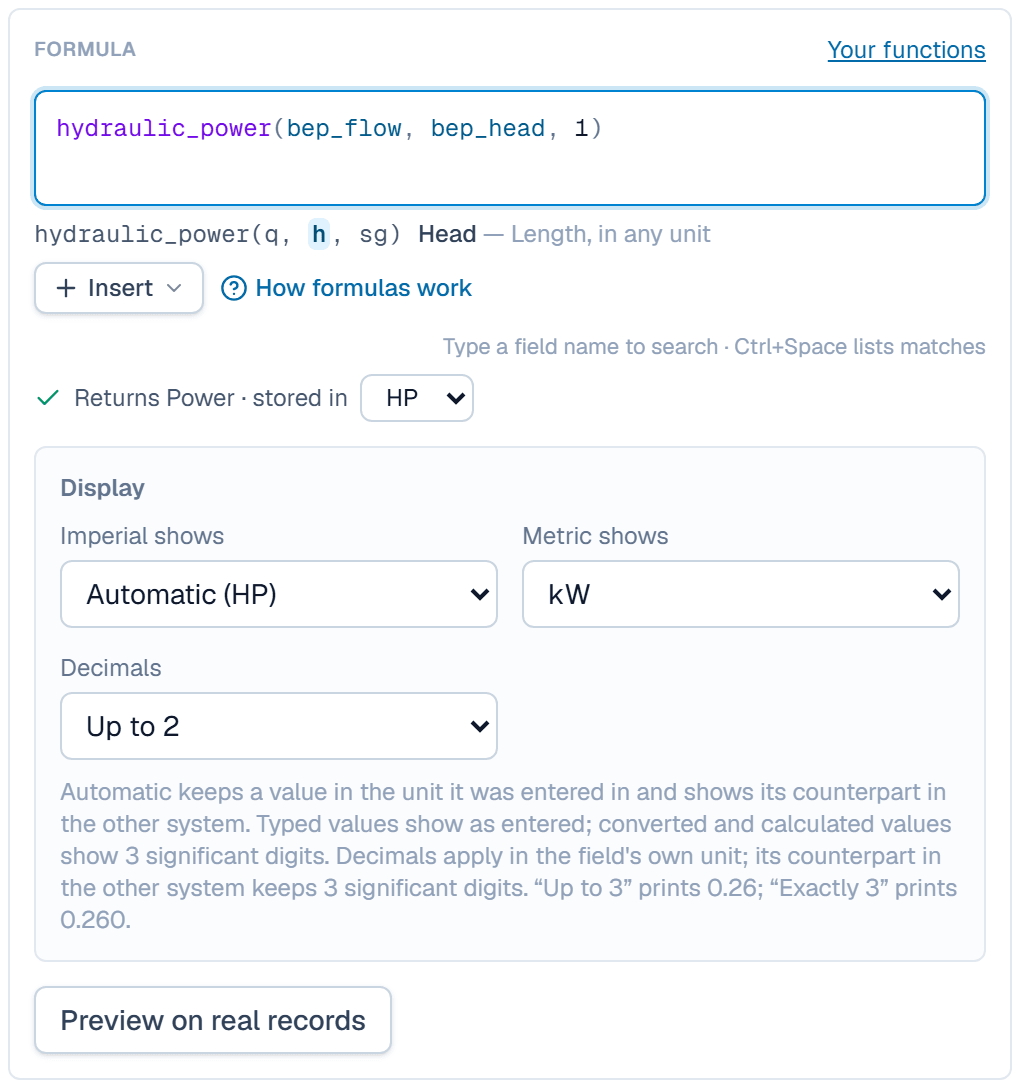
hydrand pick Hydraulic power from the list. - Give one value per input, in order: a flow field, a head field and 1 for water. The formula reads
hydraulic_power(bep_flow, bep_head, 1). - Click Create field.
If a field holds the wrong kind of value for an input, such as a pressure where a length is expected, the formula shows a red message instead.
What happens after
Every record in the table now shows its hydraulic power, worked out from its own flow and head. The function's page lists the field under Used in. If you change the function later, SpecLatch says how many records it will recompute, and Save & recompute updates them all. You can't delete a function while a field still uses it.
Related
| How-to | Give fields units and write your first formula |
| Reference | How formulas work |
| Reference | Built-in functions, with examples |
| Concept | Units & formulas |