ContentsReceive and answer inquiries
Receive and answer inquiries
Let portal visitors send you a message about a product, get notified when one arrives, and answer it from your own mail.
A visitor who finds the right product on your portal often has a question: a price, a lead time, whether it fits their application. The inquiry form lets them ask from the product page, and SpecLatch keeps every message, so a lead doesn't depend on one person's inbox. This guide turns the form on, sends a copy to a shared address and answers an inquiry.
How an inquiry reaches you
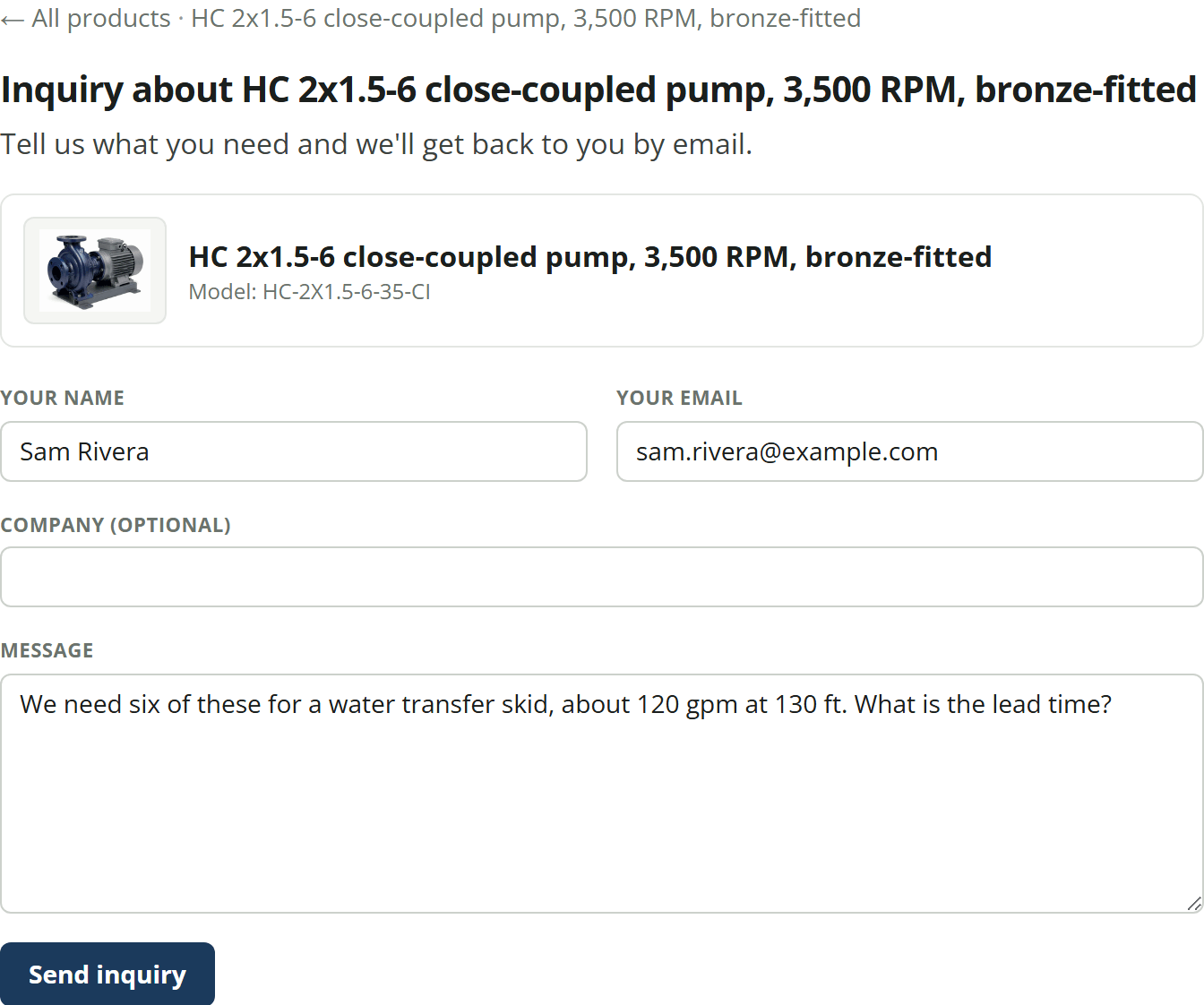
- A visitor clicks Send an inquiry on a product page, or Send us an inquiry in the catalog. From a product page, the form names that product.
- They give a name, an email address, an optional company and a message. No account is needed.
- SpecLatch keeps the message on Inquiries and notifies each Admin in the bell, and by email unless they turned email copies off. If you set a copy address, an email goes there too.
- Someone on your team replies by email, then marks the inquiry handled.
The reply doesn't go through SpecLatch. Reply opens a new email in your own mail client, so the conversation stays in your mail, and SpecLatch only keeps track of which inquiries are new and which are handled.
Before you start
- To change the inquiry settings, you need the Admin role. To read and answer inquiries, you need the Admin or Marketing role.
- Your workspace is on the Growth plan or higher, or in its trial, and the portal is open, as in Turn the portal on and choose what customers see.
Turn the form on
- Open Portal in Settings and scroll to Inquiries.
- Tick Accept inquiries from the catalog, if it isn't already.
- Under Also send a copy to, type a shared address, such as your sales inbox. It saves when you leave the box.
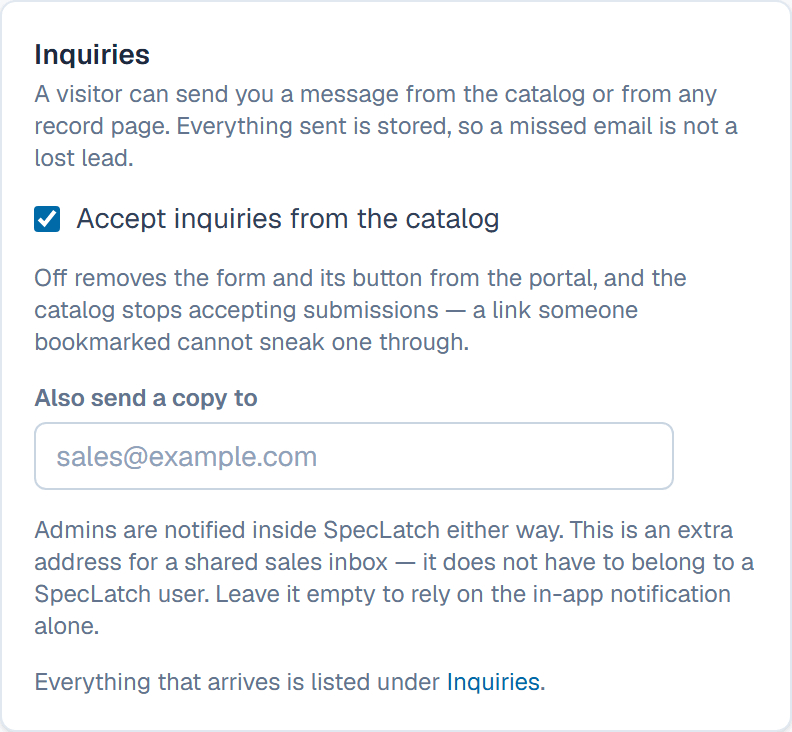
Unticking the box removes the form and its buttons from the portal, and the portal stops accepting messages, even from an old link.
Answer an inquiry
- Open Inquiries in the sidebar, or click the inquiry's notification in the bell.
- Click New at the top to list only the inquiries nobody has handled yet.
- Read the message. The line under the sender's name gives their email and the product, linked to its record. General inquiry means it was sent from the catalog rather than a product page.
- Click Reply. Your mail client opens a new email to the sender, its subject starting Re: your inquiry.
- Write and send your answer from your mail client.
- Back on Inquiries, click Mark handled so the team knows it's covered.
The inquiry now shows handled, with who handled it and when. Reopen sets it back to new.
What happens after
Activity records who marked each inquiry handled or deleted it. On Portal, Traffic counts the inquiries of the last 30 days beside the catalog's views, so you can see how often a visit turns into a question. Inquiries lists the 100 most recent.
Related
| How-to | Turn the portal on and choose what customers see |
| Concept | Portal & API |
| Reference | What each role can see and do |