ContentsFind your way around
Find your way around
The four screens you will use most, the workspace, a table's grid, a record's page and Fields, with every part numbered and named.
SpecLatch has four screens you will use most: the workspace with its dashboard, a table's grid, a record's page, and Fields, where tables are built. Each picture below numbers what you can do there, so when an article says open the view menu, you know where to look. Hover or tap a number to find its line in the list, and the other way round.
The workspace and the dashboard
The sidebar is the same on every page. What it lists depends on your role and your plan, so a teammate may see fewer rows than you.
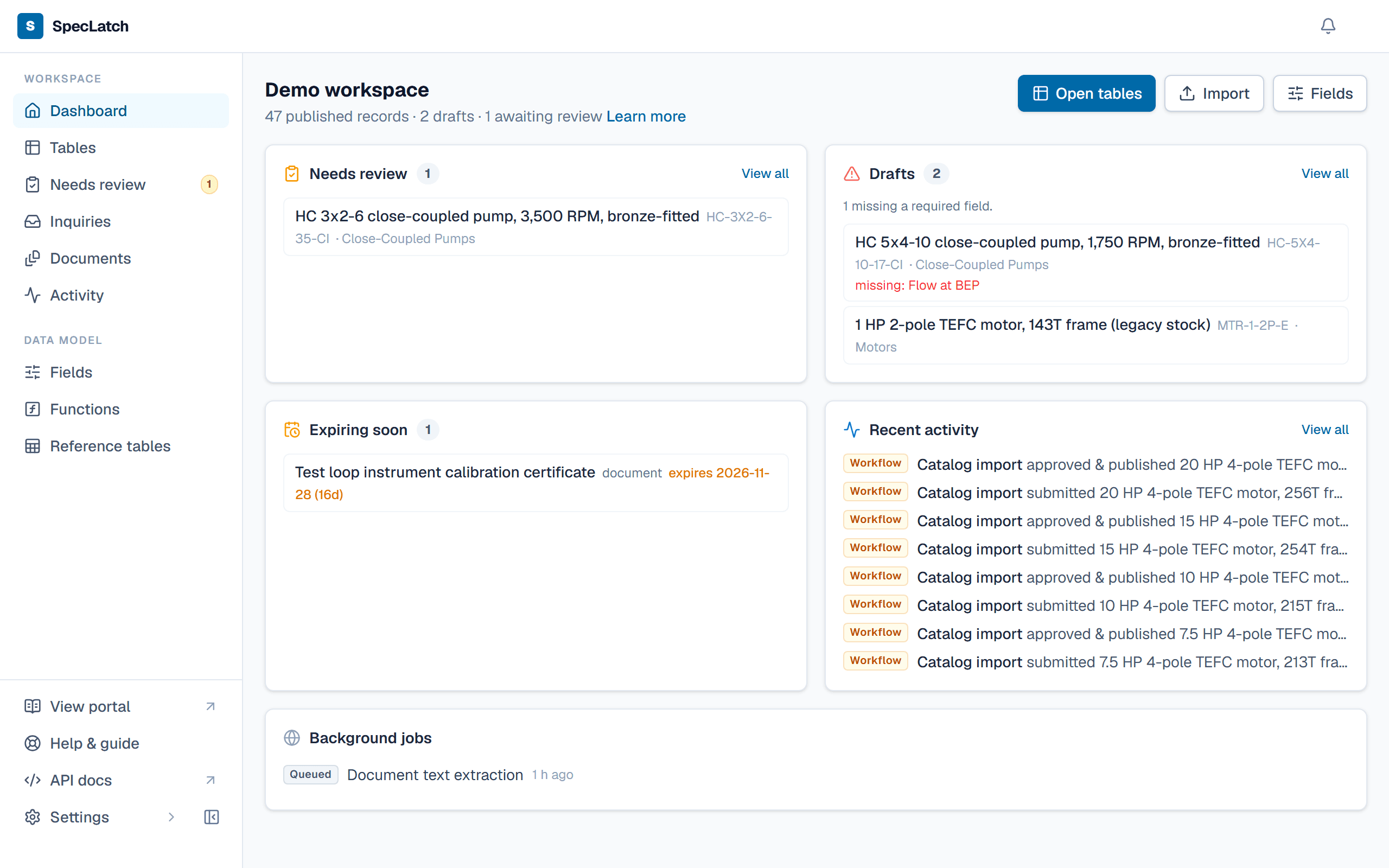
- Workspace The pages you use every day: Dashboard, Tables, Needs review, Inquiries, Documents and Activity.
- Data model Where tables, units and formulas are built: Fields, Functions and Reference tables. See Tables & fields.
- View portal Opens your public catalog in a new tab, as customers see it. See the portal.
- Help & guide Opens the guide's article for the page you are on, in a side panel.
- Settings Members, billing, branding, the portal, templates, translations, AI assists and API keys, as your role allows. See What each role can see and do.
- Page heading Every page opens with its name and one line on what it is for.
- Learn more Opens this page's article in the help panel.
- Notifications Review outcomes, mentions in comments, finished imports, documents about to expire and new inquiries.
- Dashboard cards What needs you now: records waiting for review, drafts missing a required value, documents about to expire and recent activity.
A table's grid
Open a table from Tables. Each row is a record and each column a field, and records that are still a Draft can be edited right in their cells.
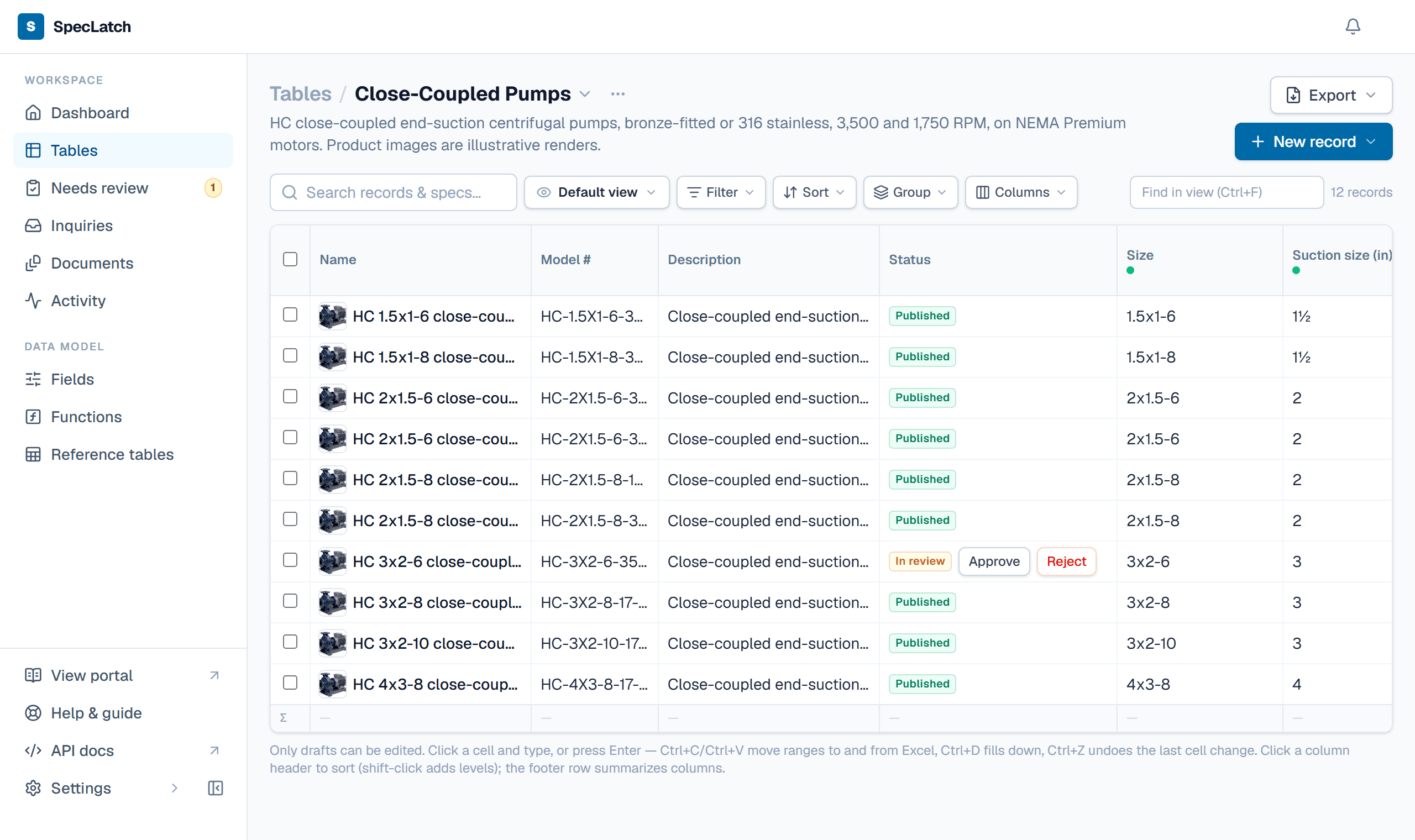
- Table name Click to switch to another table, or press Ctrl K.
- Table options The table's settings and its trash.
- Search Finds records by name or by any spec value.
- View menu Saved views, and Preview as to see the grid at a lower visibility. See Save a view for your team.
- Filter, Sort, Group, Columns Narrow, order and arrange the rows and columns.
- Find in view Highlights matches among the rows shown, or press Ctrl F.
- Export A catalog PDF, every spec sheet, and the PDF language. See Print a catalog.
- New record A blank record, one from a preset, or a spreadsheet import. See Import a spreadsheet.
- Row checkbox Tick rows to bring up the bulk bar: set a field, tag, review or move to the trash.
- Open the record Hover a row and click the expand icon beside its name to open the record's page.
- Visibility dot Each field's tier: green for Public, amber for Internal, red for Confidential. See Set a field's tier.
- Status Each record's status. Reviewers can approve or reject a record right here. See Send a record for review, approve, publish.
- Summary row A count, sum, average, lowest or highest value for any column.
A record's page
Everything about one product sits on one page: its specs, documents, files, curves and the conversation about it.
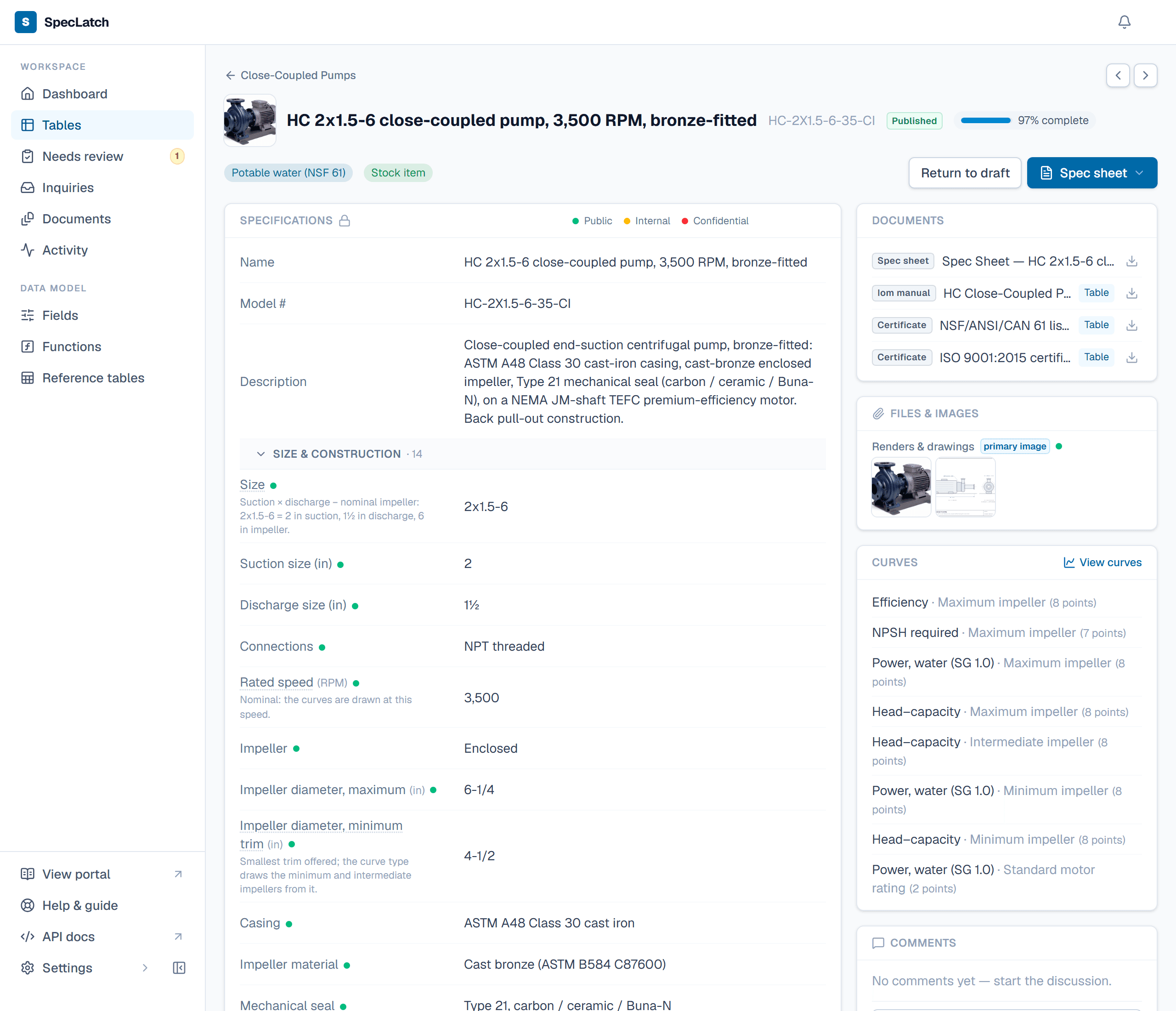
- Previous and next Step through the table's records without going back to the grid.
- Name and status The record's name, model number and status.
- Completeness How many of its fields are filled in and pass their rules.
- Tags Labels that sort records into groups for filters and catalogs.
- Review action Submit for review or Return to draft, depending on the status.
- Spec sheet Generate the record's PDF, or open the last one. See Generate a spec sheet PDF.
- Specifications Every field, in its groups. Values change only while the record is a Draft.
- Field tier The dot after a field's name is its visibility tier.
- Documents Generated sheets, and library documents linked to this record or its table.
- Files & images Photos, drawings and other files; the first image is the record's picture. See Attach files and photos.
- Curves The record's performance curves; View curves opens the chart. See Performance curves.
- Comments Discuss the record and mention teammates. History, below it, lists every change.
Fields
Fields is where a table and its fields are built. It shows to the Admin role, and to Engineering members with Confidential visibility.
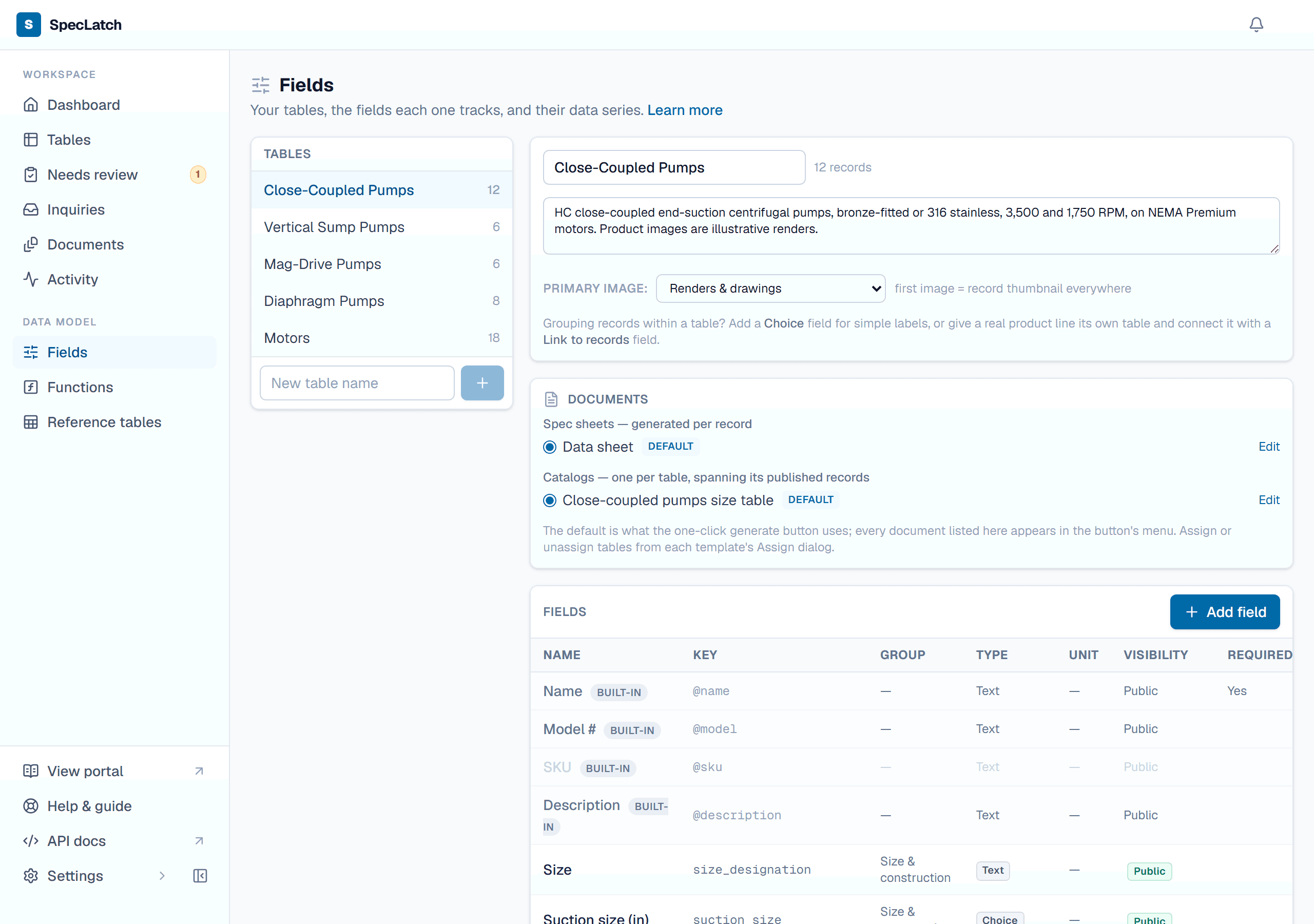
- Tables Every table, with its record count. Click one to work on it.
- New table Type a name and click the plus to create a table. See Create a table and its fields.
- Name and description The table's name, and the line shown under it in the grid.
- Primary image Which Files field gives each record its picture.
- Documents The spec sheet and catalog templates this table uses, and which one is the default. See Design a template.
- Add field Opens the gallery of field types. See Field types.
- A field Its name, key, group, type and unit. Click a row to edit the field.
- Visibility Who can see the field's values.
Next, build your first table: Create a table and its fields.
Related
| Concept | Key ideas in five minutes |
| Concept | Records & the grid |
| Concept | Tables & fields |
| Reference | What each role can see and do |